Hold Your Line
A user guide — take your time, it doesn't have to be in order.
What this is
Hold Your Line is a private place to put the events of a life in order: what happened,
roughly when, with any letters, photos or reports that belong alongside. It was built for
gathering the story behind an ill-health retirement, but it suits any situation where you
need to lay out difficult events clearly — for a doctor, a solicitor, a tribunal, or
just for yourself.
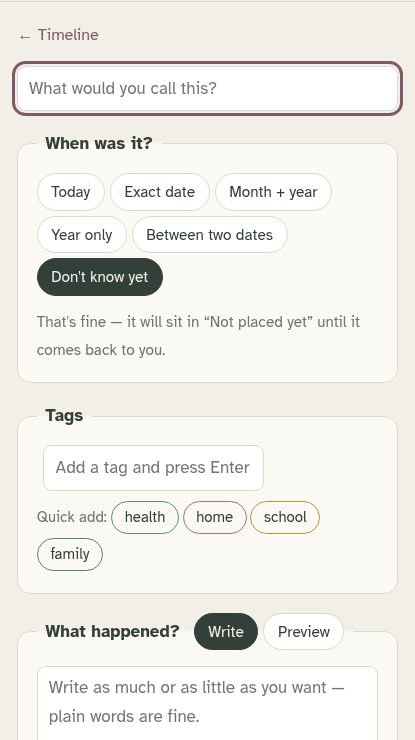
Two ideas run through the whole app. First, nothing has to be finished or
exact — you can add things in any order, with half-remembered dates, and come back
later. Second, it is genuinely private — everything you write is encrypted
in your browser before it is stored, and only your passphrase can unlock it. Nobody else can
read a word, including the person who runs the app.
Your account, and the two sets of words
You join by invite link, and your account name is your email address —
that's what you type to sign in.
The invite link does one job: it sets up your account, once. After that
you don't need it again — and if you open it later, it will tell you so and point you to
sign in. To come back another day, go straight to the app's own address (the same one the
invite link opened) and sign in with your account name and passphrase. It's worth saving
that address — bookmark it, or add the app to your home screen (see below).
There are two sets of words, and it's worth being clear which is which, because
they do different jobs:
- Your passphrase — five words. You choose this when you accept the
invite: the app suggests five random words, or you can make up your own (ten characters
or more). This is the one you type to sign in, and the one that unlocks everything you
write. Five random words is deliberate — short passphrases can be guessed by anyone who
gets hold of the stored files, and that would undo the whole point.
- Your recovery phrase — six words. The app gives you this, once,
and offers an emergency kit PDF with it on. You never type it to sign in. It exists
for one moment only: the day you can't remember your passphrase.
Print the kit or save it somewhere safe at home.
This matters more than anything else in this guide. If you forget your
passphrase, the six words on your kit are the only way back in. Nobody can reset
your account for you — not even the person who runs the app. That's not a limitation; it's
exactly what keeps your timeline private. Look after the kit.
Forgotten your passphrase? On the sign-in screen choose “Forgotten your
passphrase?”, type your six words, and you'll be walked into choosing a new one (which
comes with a fresh emergency kit — the old one stops working).
Messages
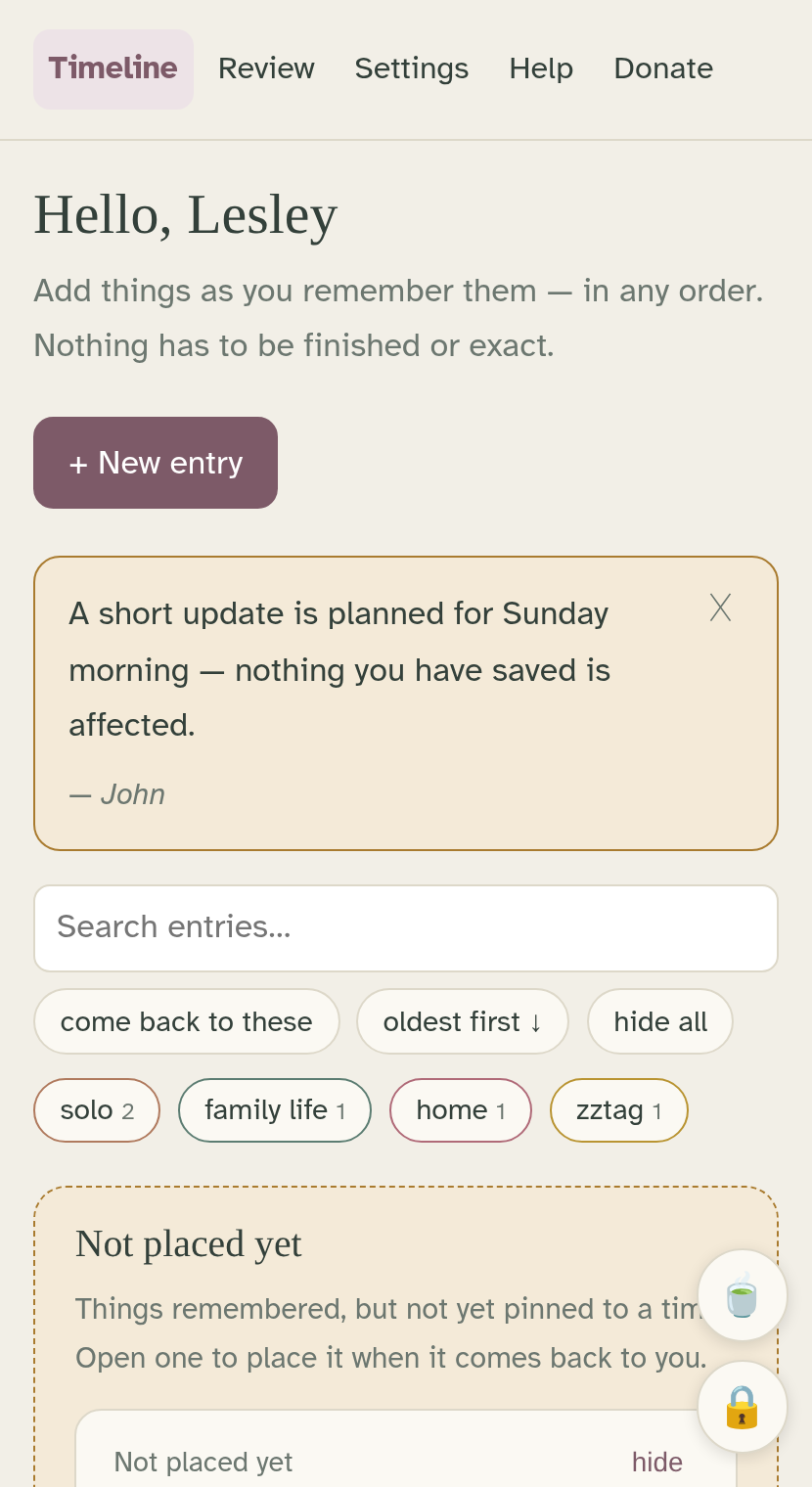
Every so often a short message from John may appear at the top of your timeline — usually about
planned maintenance, or a change to the app. Read it, then tap the ✕ to clear it;
each one only shows once. These are just notes about the app itself: nobody can see what you've
written, and a message never means anyone has read your timeline.
Covering what's hard to see
Some days, catching sight of what an entry says — even in passing on the timeline — is too much.
You can cover it, and uncover it whenever you're ready. Nothing is deleted; it's only hidden from view.
- One entry: each card has a small hide button. It covers what
that entry says; show brings it back.
- Everything at once: hide all, in the row above the entries,
covers every entry together — a quiet timeline you can still read by title. show all
uncovers them again.
- Titles too: normally the title stays visible so you can still find things. If
even the titles are hard to see, turn on Settings → Hiding entries → “Also hide titles when
hiding entries”. Then hiding leaves just the date — and you can still open an entry to read it
whenever you choose.
- One title on its own: to keep a single entry's title hidden whatever that
setting, open it and pick Cover whole entry under “In the timeline”.
Covering is only about the timeline view — a comfort, not a lock. Your Review &
export document and your backups always hold everything, so nothing you cover is ever lost.
And what you cover follows you: hide something on your phone and it's hidden on your computer too.
Backups — please do this
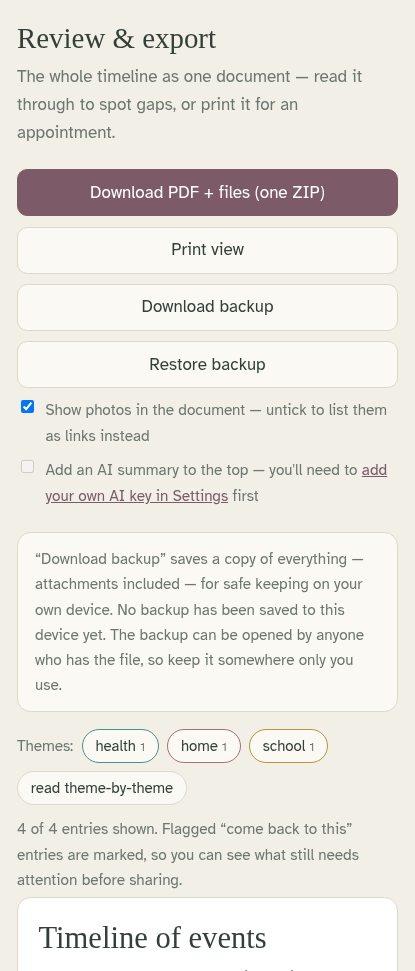
Download backup (on the Review page) saves everything — entries and
attachments together — as one ZIP on your device. It's the only copy of your timeline that
exists outside your account, and the app will gently remind you if it's been a while.
Keep the backup somewhere only you use. Unlike the app, the backup file
is not encrypted — anyone who can open the file can read it. A private folder on your own
computer is good; a shared family desktop is not.
Restore backup puts a backup back. It's careful: entries merge rather
than overwrite (newer edits win), and attachment files are only re-uploaded if they're
actually missing. Restoring an old backup won't trample what you've written since.
Settings, briefly
- Tags — add tags ahead of time, rename or remove one everywhere at
once (renaming into an existing tag merges the two).
- Details for the export — your name and NHS / National Insurance
numbers, shown only at the top of the exported document.
- Appearance and text size — light or dark, and three text sizes. The
whole app uses a typeface designed for legibility (Atkinson Hyperlegible).
- Hiding entries — the “also hide titles” switch, for when even the titles
are hard to see. The hide buttons themselves live on the timeline (see “Covering what's hard
to see”).
- AI summary key — optional, and only needed if you want the AI summary
on the export page. Paste in a free Google Gemini key (the page tells you where to make
one). It's kept on the device you enter it on, so add it on each device you use. Without a
key, the summary tick box simply stays off.
- Storage — how much space you're using and what's still free.
- The Donate button — you can hide Donate from the menu entirely;
that's fine, and this switch brings it back.
- Your passphrase — change it here (you'll get a fresh emergency
kit; other devices are signed out).
- Recently deleted — deleted entries wait 30 days here.
- Closing your account — you can delete your own account, entirely
and permanently. Download a backup first: once the account is closed,
the backup is the only copy of your timeline in the world.
The demo, and donating
The sign-in screen has “Just looking? Try the demo” — a shared example timeline
anyone can wander around. Don't put anything personal in it: everyone sees the same demo,
and it wipes itself clean at midnight. A real account is nothing like this — private,
encrypted, yours.
The app is free, with 250 MB of space per account. If it has been useful and you
can spare something, donations (see the Donate page, or the link in
About this app) keep it running — and as a thank-you, donators get 1 GB of
space. Nothing is automatic; it's handled by hand.
Common questions
I've forgotten my passphrase.
Use “Forgotten your passphrase?” on the sign-in screen with your six recovery
words. If you've lost the passphrase and the six words, nobody can open the
account — that is the price of nobody being able to read your timeline.
My invite link says it's used or expired.
That link is only for setting up your account the first time, so it stops working once
you've used it — that message usually just means your account is already made. You don't
need a new link: go to the app's own address and sign in with your account name and
passphrase. (If you genuinely never finished setting up and the link has run out — they
last seven days — ask for a fresh one.)
The timeline shows things I'm not ready to see.
Tap hide on an entry to cover what it says, or hide all above
the entries to cover everything at once — and Settings → Hiding entries can hide the titles
too. Nothing is deleted; show brings it back whenever you're ready. (See “Covering
what's hard to see”.)
A file won't attach.
Attachments can be up to 4 MB each, and uploading needs a connection. The rest of
the entry still saves; add the file when you're back online.
I deleted something I didn't mean to.
Settings → Recently deleted keeps entries for 30 days. Attachments removed from
an entry are recoverable the same way, through the entry's restore.
Is my timeline really private?
Yes. It's encrypted in your browser with keys that come from your passphrase. What's
stored online is unreadable without them — to the app's administrator, to Google (where the
encrypted files live), to anyone. The exported PDF and the downloaded backup are the
readable copies you choose to make; treat them with care.
There is one deliberate exception, and only if you switch it on. The AI
summary on the export page sends your entries to Google to be summarised. It is off
unless you turn it on, it needs a key you add yourself, and the tick box says plainly what it
does before you use it. Leave it alone and nothing you write ever leaves your device
unencrypted.
Why “Hold Your Line”
The name means two things, and both are meant. “Holding the line” is what the emergency
services do — standing firm for other people, often at a cost to themselves. This app is a
small way of holding the line for you, for a change.
And it is your line: your record, in your order, in your words — a line of events
that only you can unlock. Keeping hold of that, when things are hard to prove or hard to
remember, is what the whole app is for.